Automating Email Responses

After filling out and submitting a form, website visitors typically expect a confirmation email to be sent to them. Fortunately, the WebCRM supports automated and personalized email notifications.

The email notification feature is based on two mechanisms, activities and templates.

WebCRM activities are a means for storing messages and commenting on them. Using the JustRelate CRM Connector, activities can be integrated into every website so that any kind of form data can be transferred to and queried from the WebCRM. You can create custom activity types for differentiating as many use cases as desired, e.g. contact forms, event registration, order forms, etc. The JustRelate Dev Center uses activities for handling support cases in its Support Center.

Every time an activity is created or commented on, the WebCRM sends a notification email. It uses your custom templates for computing the recipients or the contents of this email.

Templates let you access, for example, the data of the activity concerned in order to customize the notification email. The WebCRM templating mechanism is based on Liquid, a simple script language for composing text fragments from the fields of a data source. It supports basic control structures such as if / else, case / when.
Notifying visitors

If your Rails application uses WebCRM activities to record your website visitor’s requests, you can have notifications sent to the visitors by defining or extending your templates. Templates can be defined for the following aspects of the email:

  • The sender email address. You can use an individual address for each of your use cases, e.g. support@company.com, contact@company.com, etc.
  • A reply-to address to which replies to the notification email are sent.
  • A list of BCC recipient addresses (optional).
  • The subject of the email.
  • The email recipient or recipients.
  • The body of the email, i.e. its contents.

Responding to customer requests

Suppose, your website includes a contact form. After submitting this form, an email should be sent to the person who filled out the form as well as to the person responsible for dealing with these requests.

1. Create a custom activity type

For keeping track of these activities, define a special-purpose activity type named contact-form with two states, open and _closed. Later on, you might use a list to filter the activities by their state.

2. Define sender email address

Currently, you need to contact our customer support to have your email address verified by Amazon. You as the owner of this address will receive an email from Amazon SES (Simple Email Service) asking you to consent to this address being used as an SES sender address. Afterwards, we will add this address to the list of permitted sender addresses in your WebCRM.

To use more than one address depending on the notification or activity type, use a template like the following one for the notification_email_from field instead of entering the address directly or selecting it from the drop-down menu.

{% case activity.kind %} {% when 'contact-form' %} contact-us@example.de {% endcase %}

3. Define reply-to email address

The reply-to address can be set if replies to your automated email messages should not be sent to the sender address. Again, you can use a template, notification_email_reply_to, to use different reply-to addresses depending on the notification or activity type.

{% case activity.kind %} {% when 'contact-form' %} {% unless activity.deleted_at %} {% if activity.comments.last.published and activity.comments.last.updated_at == activity.updated_at %} contact-us@example.com{% if activity.email_cc %}, {{ activity.email_cc }}{% endif %} {% endif %} {% endunless %} {% endcase %}

4. Set BCC addresses

You can have a blind copy of the outgoing email sent to one of your company addresses, e.g. to the person responsible for processing the customer’s request. Use the notification_email_bcc template for this.

{% case activity.kind %} {% when 'contact-form' %} contact-us@example.com {% endcase %}

5. Set the email subject

Use the notification_email_subject template to set the subject of the notification email.

{% case activity.kind %} {% when 'contact-form' %} Your customer request {% endcase %}

6. Define the email recipients

Normally, activities are assigned to a WebCRM contact person. This is what the following template, notification_email_to, assumes when it sets the primary recipient to activity.contact.email. Furthermore, the CC addresses specified in the activity are added to the recipients list.

{% case activity.kind %} {% when 'contact-form' %} {% unless activity.deleted_at %} {% if activity.comments.last.published and activity.comments.last.updated_at == activity.updated_at %} {{ activity.contact.email }}{% if activity.email_cc %}, {{ activity.email_cc }}{% endif %} {% endif %} {% endunless %} {% endcase %}

7. Set the contents of the email

The notification_email_body template might quickly become rather extensive, especially if the template needs to cover several use cases, i.e. activity types. In this case, the email bodies should be placed into individual templates, e.g. contact_form_email_bodyregistration_form_email_body, etc. For including such templates, the Liquid include statement is available.

{% case activity.kind %} {% when 'contact-form' %} {% include "salutation" with activity.contact %}, {% if activity.comments.size == 1 %} we have received your inquiry below and will come back to you as soon as possible. {% else %} To your inquiry the information below have been added. {% endif %} -------------------------------- {{activity.comments.last.notes}} -------------------------------- Kind regards, Your Customer Service Team {% include "signature_contact_form" %} {% endcase %}

Note that a salutation as well as a signature_contact_form template are included in the body template above. This helps to keep the body template smaller and to avoid redundancy. To the salutation template the activity.contact is passed as an argument. In the template, this argument is available through the template name, i.e. activity.contact becomes salutation in the salutation template.

8. The salutation template

{% assign salut = '' %}{% capture white_spaces %}
{% case {{salutation.name_prefix}} %}
{% when 'Dr.' %}
  {% case {{salutation.gender}} %}
  {% when 'M' %}
    {% capture salut %}Dear Doctor {{salutation.last_name}}{% endcapture %}
  {% when 'F' %}
    {% capture salut %}Dear Doctor {{salutation.last_name}}{% endcapture %}
  {% else %}
    {% capture salut %}Dear Sir{% endcapture %}
  {% endcase %}
{% when 'Prof.' %}
  {% case {{salutation.gender}} %}
  {% when 'M' %}
    {% capture salut %}Dear Professor {{salutation.last_name}}{% endcapture %}
  {% when 'F' %}
    {% capture salut %}Dear Professor {{salutation.last_name}}{% endcapture %}
  {% else %}
    {% capture salut %}Dear Sir{% endcapture %}
  {% endcase %}
{% else %}
  {% case {{salutation.gender}} %}
  {% when 'M' %}
    {% capture salut %}Dear Mr. {{salutation.last_name}}{% endcapture %}
  {% when 'F' %}
    {% capture salut %}Dear Ms. {{salutation.last_name}}{% endcapture %}
  {% else %}
    {% capture salut %}Dear Sir{% endcapture %}
  {% endcase %}
{% endcase %}
{% endcapture %}{{salut}}

9. The signature template

The email body template above includes a signature template, signature_contact_form that, opposed to the salutation template, has been tailored to the contact-form activity type in order to support individual signatures for the activity types. The following signature template consists of pure text. Neither Liquid statements nor variables are used.

-- Customer Support Team | contact-us@example.com YourCompany Ltd | www.example.com | Phone +44 20 123456-0 15 Sample Road, London ECX3 LY8, Great Britain

Finding out about open requests

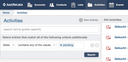
After this process has been set up, you can easily determine the requests that have been submitted from your website. Open your WebCRM and navigate to the Activities section:

First, select the activity type and its state you are interested in. This will filter the activities accordingly. To process an activity, click the item from the results list, select Edit from its context menu, add your comment, then click Update. This causes another email notification to be sent to the recipients specified in the notification_email_to template. To close the activity, set its state to _closed.