
Initially, a mailing has no scheduled deliveries. Releasing a mailing without deliveries would not deliver a single email. Think of a delivery as an envelope you prepare for sending to a recipient email address.
Adding Mailing Deliveries
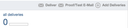
From the mailing view page, follow the All Deliveries statistics link. Alternatively, you can click Add Deliveries as a shortcut to directly adding deliveries.
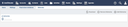
If a mailing has not yet been released, the Deliveries page displays all planned deliveries. After the mailing has been released, this page lists all processed deliveries. If you add more deliveries after a mailing has been released, both the previously processed deliveries and the planned deliveries are displayed.
Please see the Analyzing Mailing Statistics section to learn how to interpret the various results of the delivery process.
Defining recipient email addresses and deliveries
Mailing recipient email addresses are unique. Although every contact person with an email address is a potential mailing recipient, the same email address might have been assigned to more than one contact person. In such a case, the mailing is sent only once to their email address. This is to avoid multiple copies of the email in the same mailbox.
By adding a delivery, you prepare the mailing for sending it to a particular recipient email address. Thus, if you remove a delivery prior to releasing the mailing, the corresponding recipient will not receive an email.
A recipient email address can be active or inactive. The WebCRM sends emails to active email addresses only. Inactive addresses are excluded from email deliveries for at least one of the following reasons:
- The corresponding person revoked their consent by unsubscribing.
- The corresponding person marked an email as spam.
- No mailbox exists for the email address, or any other permanent delivery error occurred.
A recipient email address is not declared inactive as a result of a full mailbox because the mailbox might have been cleaned up prior to the next mailing. This is why the address is not automatically excluded from further deliveries. If, on the other hand, an email address owner classifies the email as spam, the WebCRM deactivates the email address in order to spare the recipient's email address from further unsolicited mails.
Adding deliveries from various sources
The WebCRM supports adding deliveries from different sources:
- You can enter a single email address. A contact with this email address must exist to have the WebCRM send an email to this address.
- You can select a single contact. The contact needs an email address.
- You can select a previously prepared contact collection. In this case, deliveries for the email addresses of all contacts in the collection are added.
- You can select an event. Deliveries are added for all event participants. You can narrow down the selection by specifying a participation state (e.g. "attended").
- You can select a different mailing. This copies the deliveries from that mailing.
- You can select subscribers to your mailing topics.
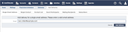
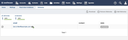
When specifying the deliveries for a mailing, an email address can be added only once. If two or more contact persons share one email address (e.g. a mailing list), they are considered the same recipient because emails are delivered to email addresses, not to individuals. For this reason, a mailing is delivered only once to each address. When finally releasing a mailing, the sending status of each delivery, e.g. success or failure, is recorded in the individual mailing delivery. Additionally, email opens and link clicks are recorded in the mailing delivery.
Removing deliveries
If you choose to not include a specific recipient email address in the mailing, you can remove the delivery that has been prepared for this email address. Click the edit button on the left hand side of the row concerned to remove this row.
Use the Remove Deliveries button to do exactly this. It is not possible to delete a delivery after it has been processed, i.e. delivered.