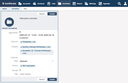
Activities

Activities represent processes typically connected to a person or an account, such as customer requests of any kind. An activity can have comments attached to it for the purpose of documenting the changes or the work steps that were made, for example.

Optionally, the current state of an activity can be set. The states available for activities can be defined freely (e.g. OpenedIn progressClosed) by an administrator in the type configuration.

Activities can be created, extended, and closed using either the browser or the JustRelate CRM Connector from within a Ruby on Rails web application.
Creating an activity

You can create an activity via the Activities main menu item, or via a person or account view.

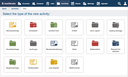
When creating an activity, the first step is to select its activity type. Individual types can be configured and tailored to their intended purpose.

After selecting a type, the data of the activity can be entered. The available custom fields depend on the activity type.

Contact persons and accounts

To an activity, any number of persons and accounts can be assigned. The first person in the persons list is the main contact person. This analogously applies to the accounts of the activity. In activity lists, all person- and account-related comparisons refer to the main person or, respectively, to the main account.

Appointments

For the purpose of processing an activity, it can be provided with an appointment. A contact person's appointments are not only visible in the WebCRM agenda but also on the participants' dashboard.

If the WebCRM is connected to a Google calendar, every appointment participant who also is a WebCRM user is automatically added to the corresponding Google calendar entry (see below for details). A WebCRM user is a contact person with at least one user role.

Comments

After an activity has been created, you can add any number of comments to it. Select the Published option if you want the WebCRM to send the individual comments as an email to the persons assigned to the activity.

Notification emails can be customized by means of templates. Sending email notifications for comments not to be published must be suppressed explicitly by means of the template.

If you are adding the comment in behalf of someone, you can assign the corresponding contact person to the comment (Add comment by).

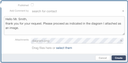
Every comment may include one or more attachments. Simply drag a file from your desktop or file system browser to the area indicated and drop it there (or use select item):

All the comments of an activity can be sent to any number of email addresses. For this, there is a corresponding button at the bottom of the details view:

Clicking this button opens a form where the recipient email addresses can be entered, separated by a comma. Also, if the activity has an owner, a checkbox for selecting the owner's email address is displayed.

Synchronizing appointments with a Google calendar

The WebCRM offers the possibility to push all appointments to a separate calendar of a Google account.

To make use of this functionality, an administrator (superuser) needs to connect the WebCRM with the Google account first. It is recommendable to choose a Google account for this calendar that can be accessed at least by the persons for whom appointments are made.

The WebCRM will then place all the appointments that are defined in activities into the JustRelate WebCRM calendar of the Google account.

The persons for whom an appointment has been made show up as guests in the Google calendar entry concerned.