
An Event in the WebCRM makes it possible to maintain not only the event data (e.g. dates or locations) but also lists of participants or potential participants. These lists can be used for other actions, e.g. mailings. Event participant data (registrations, refusals, but also any kind of additional data) can be acquired manually or via a web application. If required, this data can be exported and then processed further using the WebCRM or other applications.
Events
Creating an event
First, in the Events section, click New event. You will then be asked to specify the type of the event to be created. For the purpose of attaching additional pieces of information to an event, event types can be configured by an administrator.
Having selected the desired type, you can specify the event details.
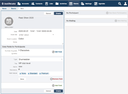
Next to self-explanatory fields such as Title, events have a special set of fields, Additional Data Fields for Participants. Every participant is automatically provided with the fields you specify here. You can use these fields to store event-specific details for every participant, e.g. the talks a congress participant wants to attend, or the number of guests a participant will bring to the event:
Later on, the fields can be filled-in by means of the user interface of the WebCRM. However, the field values are primarily meant to be provided by the visitors of your website, using a form.
Adding participants
Individuals are meant to register for an event using a registration form on a website. Therefore, participants cannot be added to an event by means of a list. However, you can still add individual persons using the web interface of the WebCRM. To do this, click New Event Participation on the event's page. Select the person to add, then click Create to have the participant entry created. You can then specify the person's participation state, and enter the participant's event details. Clicking Create once more causes the details of the participant to be displayed.
The WebCRM stores an event participation as a link between an event and a person. This link includes the person's participation state as well as the values of the person's details fields.
The details of an event includes the total number of participants as well as the number of participants for each state.
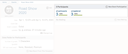
Every figure displayed can be clicked to have the list of the persons concerned displayed. From this list, a participant's state can be easily changed. To edit or delete a person's participation, click the person's name, then click Edit.
Mailings
The details page of an event also includes a Mailings section where the list of the mailings associated with the event can be found.
Click a mailing in the list to open its details page. You can create a new mailing for this event by clicking New Mailing at the top of the Mailings section.