
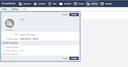
You can create a mailing via the Mailings tab in the main menu. Clicking New Mailing opens the following form:
Creating a Mailing
The Scrivito Mailing Editor doesn't show up as an option in the mailing creation form? This editor lets you compose mailings using in-place editing, drag & drop widgets, and much more. Don’t hesitate to contact our support team to have the Scrivito Mailing Editor enabled in your WebCRM.
A mailing requires a title to help identify it among other mailings later on.
Optionally – if you want to associate the mailing with an event –, you can select an event here. For example, the mailing titled "Road show invitations" could belong to the planned "Road show" event. If you specify an event, the mailing appears on the details page of the event.
Also, you may want to specify when you want to release the mailing, i.e. send it to the mailing recipient email addresses. This planned release date can be specified to have the mailing show up in the calendar. Please note that you need to explicitly release the mailing to actually deliver the emails. This doesn't happen automatically at the specified date.
The WebCRM has built-in link tracking. You can enable it on a link-by-link basis using the tracked_link Liquid filter when editing the mailing content. If you specify a Google campaign name, the WebCRM automatically appends utm_source, utm_medium and utm_campaign parameters to the URLs of all tracked links.
If you also specify a Google tracking ID, the WebCRM can track email opens with Google Analytics in addition to its own tracking.
After clicking Create, you can specify further properties of the new mailing.
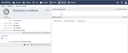
Initially, a new mailing has no recipient email addresses nor other properties related to the mailing delivery.
Mailing header fields such as From or Subject can be edited on the right-hand side of the page.
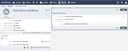
- From Address: Select one of the sender email addresses offered. Please refer to the System Settings section of the WebCRM to first register a sender email address.
- From Display Name: The name associated with the email address, e.g. your company name or the author's name.
- Reply-To: The address to which replies are sent can be specified here.
- Subject: The subject of the emails sent out.

After delivery, a mailing cannot be edited again.